Your Practical Guide to Docker Swarm: Clustering Made Easy🐳
Part 6
We have already seen how Docker Compose helps us run multiple services on a single host. But what happens if that single server goes down? The entire application goes offline, leading to downtime. Since everything is running on one machine, availability is limited, there is no real self-healing capability, and even if we create multiple replicas, they still run on the same server, so it doesn’t truly solve high availability.
To overcome these limitations, Docker provides another powerful solution called Docker Swarm. Docker Swarm is a container orchestration tool that allows you to run containers across multiple servers (nodes). It provides features like high availability, load balancing, automatic failover, self-healing containers, and easy scalability.
Before jumping straight into Kubernetes, learning Docker Swarm is a great step. It is simpler to understand, helps you grasp orchestration concepts clearly, and makes your journey toward Kubernetes much easier.
What is Docker Swarm ?
Docker Swarm is a container orchestration tool that manages multiple containers across multiple nodes. It follows a Manager–Worker architecture (similar to a master–slave concept, but officially called Manager and Worker nodes), where the Manager node controls and schedules tasks, and the Worker nodes execute them.
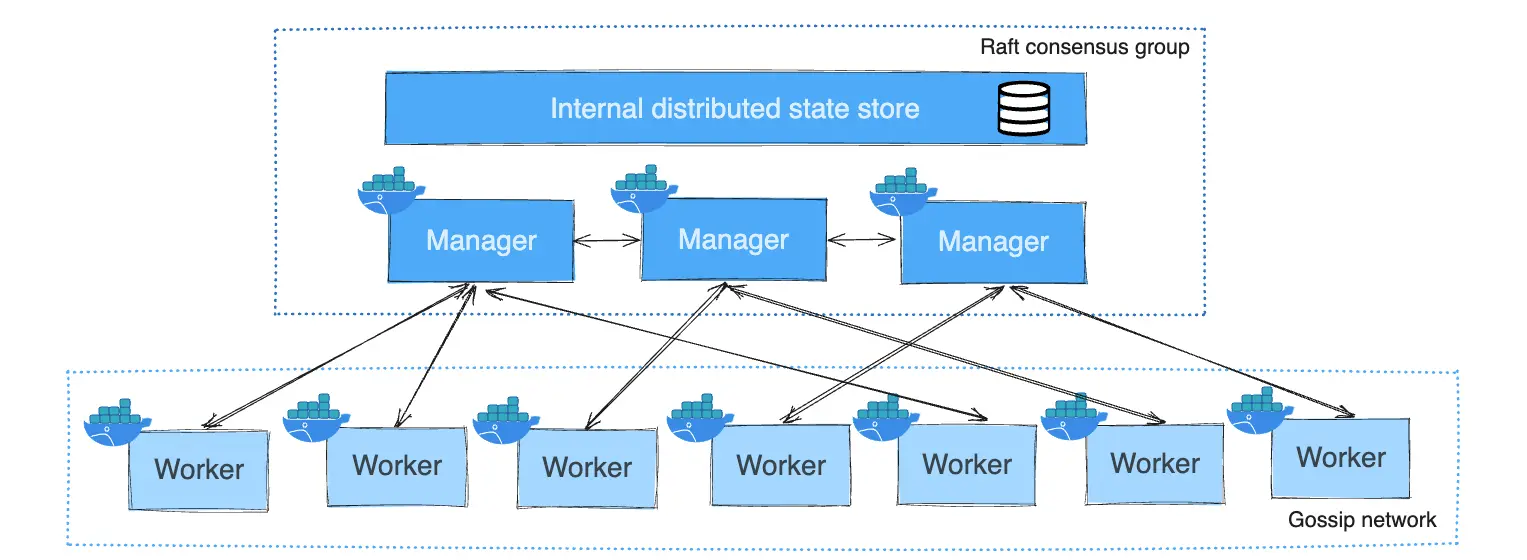
Docker Swarm can:
Self-healing: Automatically detects failed containers and recreates them on healthy nodes.
Scaling: Supports easy manual scaling of services with replicas and distributes them across nodes.
High Availability: Ensures application availability by running services across multiple nodes.
Rolling Upgrades & Rollbacks: Allows smooth updates with minimal downtime and rollback if issues occur.
Cluster Management: Manages multiple nodes efficiently with Manager–Worker architecture.
A group of Manager and Worker nodes together is called a Docker Swarm Cluster. Since the application is deployed across multiple nodes in the cluster, it can be accessed even if one node goes down, ensuring high availability.
From Theory to Practice: Creating a Swarm Cluster 🧑💻
Create three different servers in three separate regions. This setup helps demonstrate high availability in action, as Docker Swarm can distribute services across nodes and ensure the application stays running even if one server goes down.
1 Manager Node: Controls and manages the cluster
2 Worker Nodes: Run the application containers

Install Docker and start in the three servers
yum install docker -y && systemctl start docker
To set up a server as a manager, you need to initiate the swarm on that server.
docker swarm init

Now, once you have the token, copy the entire command and run it on the servers where you want to create worker nodes.
Swarm uses TCP port 2377 for cluster management.
Make sure firewalls/security groups allow traffic in worker nodes

In the image, notice the Manager Status column. The node marked as Leader is the manager of the Swarm cluster.
Manager nodes in Docker Swarm are responsible for all cluster management tasks:
Creating, updating, or deleting services
Managing worker nodes (adding/removing nodes)
Scheduling tasks and maintaining the desired state
Performing rolling updates and rollbacks
Worker nodes, on the other hand, only run the containers assigned to them—they do not perform administrative tasks.
Creating a Service :
To create a service using docker swarm
docker service create --name mysite --publish 1111:80 --replicas=1 ramagrandhi:swarmSite
To see all the containers of a service and where they are running
docker service ps mysite
Check all three servers by accessing the endpoint with the specified port.

To get list of containers
docker ps
In a Swarm service, you can attempt to remove a container manually using:
docker rm -f c6b929aa88ae
But Swarm manages the container automatically, so it will recreate the container on any available node, thanks to its self-healing feature.

If you notice, the deleted container goes into shutdown mode and then a new container is automatically created.
Scaling in Docker Swarm :
It’s always best practice to run multiple containers for a service. If traffic spikes and only one container is running, it may become overloaded and crash. Even though Docker Swarm can automatically create a new container, it can take several seconds (5–10s), which can result in temporary downtime.
To scale in the containers
docker service scale mysite=4

In this image, you can see four containers running across different servers. When you scale the service, Docker Swarm distributes the load efficiently, starting with servers that have fewer containers, ensuring balanced resource usage across the cluster.
for scale down u can use the same command but decrease the number
docker service scale mysite=2

Upgrade and rollback :
Upgrade
Docker Swarm allows you to update a service without downtime using a rolling update.
It updates one or a few containers at a time, instead of stopping all containers at once.
This ensures the service remains available while the new version is deployed.
docker service update mysite --image=ramagrandhi/swarmSite2
Rollback
If something goes wrong with the new version, you can roll back the service to the previous version.
Swarm automatically replaces the updated containers with the previous working containers.
docker service rollback mysite
In Docker Swarm, rollback only restores the service to the previous version.
You cannot roll back multiple versions; only the last deployed version is stored for rollback.
If you perform an update and then a rollback, Swarm replaces the current containers with the ones from the immediately previous deployment.
Example:
v1→ initial service versionv2→ updated versiondocker service rollback myservice→ goes back tov1If you then update to
v3and rollback, it will go back tov2, notv1.
Cluster Management
To remove a node from a Swarm cluster, run the command on that node it will leave the cluster and show as down.
docker swarm leave

To remove completely the node from cluster
docker node -f pymxiz76hxawwyba7pn2eve8w

To get a token to join a new node
docker swarm join-token worker # for worker node
docker swarm join-token manager # for manager node


After joining a new manager node, its status shows as reachable, confirming that it is part of the swarm and also has manager privileges.
Deleting the Manager Node Where Swarm Was Initialized
The node where you ran
docker swarm initis the initial manager (Leader).If you delete or remove this node:
Swarm will elect a new Leader automatically from the remaining manager nodes.
The cluster continues to function as long as at least one manager node remains.
If it was the only manager, removing it will destroy the swarm, and all services/tasks will stop.
Deleting a Leader Manager Node
Swarm needs most managers online to work.
If the leader is deleted and too few managers remain, the cluster loses control.
Worker nodes cannot lead.
Best practice: Keep an odd number of managers.
To fix, add a new manager and Swarm will choose a new leader
Conclusion
Docker Swarm is an easy and powerful tool for managing containers across multiple nodes. It provides high availability, self-healing, and simple scalability, keeping your applications running smoothly. With its Manager–Worker architecture, tasks and resources are distributed efficiently. Swarm makes it easy to scale services, perform updates, and manage nodes, making it a great starting point before moving on to more complex systems like Kubernetes.
If you found this guide useful, please like ❤️, comment, and share your thoughts or questions. Stay tuned for the next part, where we'll explore advanced Docker concepts and practices.
Thank you,
Yours, Rama Grandhi